How to Set Up a Blog in the USA (2026): The Complete Step-by-Step Checklist for Beginners
Want to set up a blog in the USA but not sure where to start? Follow this step-by-step checklist domain, hosting, WordPress install, plugins and Google tools get live today.
You Do Not Need to Be Technical to Set Up a Blog Seriously
Here is the thing that stops a huge number of people from ever starting: they think setting up a blog means dealing with code, servers, IT problems, and hours of frustrated Googling. And for a long time, that was sort of true. But it is not like that anymore.
Setting up a blog website builder for beginners in 2026 specifically a WordPress blog is closer to filling out a few straightforward online forms than anything resembling web development. Most people get their entire blog live in a single afternoon. No technical background required. No coding. No hiring anyone.
This checklist walks you through every single step in plain English. By the time you reach the bottom of this page, you will know exactly what to click, what to type, and in what order. We cover:
- Buying your domain name and choosing the right registrar
- Setting up hosting that is fast, reliable, and US-based
- How to set up a WordPress blog using one-click installation
- Picking a theme that loads fast and looks professional
- The 5 plugins every US blogger needs before publishing
- Connecting Google Search Console and Analytics for free
- A final pre-publish checklist for your first article
⚡ Total Time: One Afternoon
Step 1 — Domain name:~15 minutes
Step 2 — Hosting setup:~20 minutes
Step 3 — WordPress install:~5 minutes
Step 4 — Theme:~15 minutes
Step 5 — Plugins:~10 minutes
Step 6 — Google tools:~20 minutes
Step 7 — First article prep: ~15 minutes
Total: roughly 1.5–2 hours. That is it. Your blog will be live.
Step 1 - Buy Your Domain Name
Your domain name is your address on the internet — like yourblog.com. When someone types it into a browser, they land on your blog. Choosing one takes more thought than people expect, so here is exactly what to look for.
How to Choose a Domain Name for a Blog
The question most beginners ask is: how to choose a domain name for a blog that actually works long-term. Here are the rules that matter:
- Keep it short and easy to spell. If someone hears your blog name out loud and cannot spell it correctly, you are losing traffic every single day.
- Use .com. Other extensions like .net, .blog, or .co are fine technically, but .com is still what Americans trust most. If .com is not available for your idea, rethink the name.
- No hyphens, no numbers. They look spammy in a URL and are awkward to say out loud 'dash', 'hyphen'. Avoid them.
- Include your niche if it fits naturally. financeforteachers.com tells Google and readers exactly what you are about before they even click. myjourneyonline.com tells them nothing.
- Check social handles at the same time. Go to Namechk.com and search your idea it checks Instagram, Pinterest, Twitter, and dozens more at once. You want @yourblogname available everywhere.
Where to Buy: Best Domain Registrar for Bloggers
The best domain registrar for bloggers in the US right now is Namecheap.com. Domains cost around $8–$15/year, the interface is clean and simple, and there is no aggressive upselling to deal with. Google Domains is another solid option at a similar price point.
One thing to know: do not buy your domain from your hosting company. It seems convenient, but having your domain and hosting at separate companies gives you more flexibility later. If you ever want to switch hosting providers, your domain stays put.
💡 US Blogger Tip Check Social Handles First
Before you buy any domain, go to Namechk.com and search the name.
You want your blog name to be free on Instagram, Pinterest, and YouTube at minimum.
Pinterest in particular drives huge amounts of US blog traffic in niches like food, finance, home, and lifestyle.
If the name is taken on Pinterest find a different domain name.
Step 2 - Set Up Hosting
Hosting is the actual space on the internet where your blog lives. Think of your domain as your street address and hosting as the physical building. Without hosting, your address points to nothing.
For anyone searching cheap web hosting for blogs in the USA, here is the honest breakdown of your three best options as a beginner:
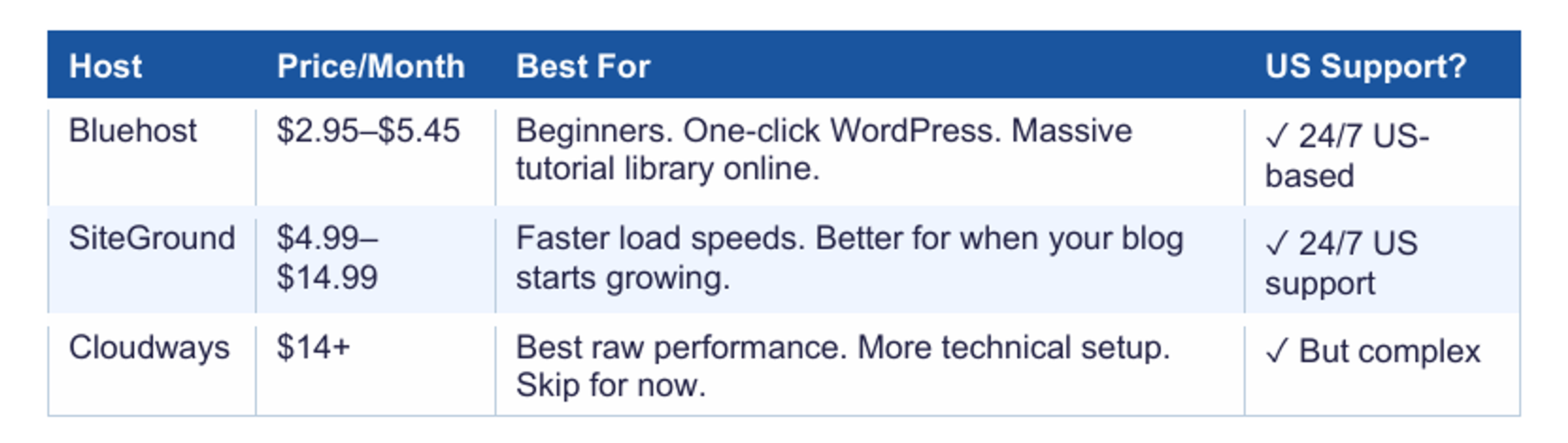
This is also your managed wordpress hosting comparison in a nutshell. Both Bluehost and SiteGround handle WordPress management for you updates, security, basic optimization. You do not need to touch any of it.
One thing that catches beginners off guard: all Bluehost and SiteGround plans include a free SSL certificate for blog setup that little padlock icon you see in browser address bars. It switches your site from http:// to https:// which Google requires for good search rankings. It activates automatically you do not have to do anything to get it.
For most US beginners: start with Bluehost. It is the most documented beginner host in the US, which means if you ever get stuck, there are thousands of tutorials, YouTube videos, and forum answers already written for exactly your situation.
🇺🇸 Why US-Based Hosting Matters
Server location affects how fast your blog loads for your readers.
US-based hosting servers = faster load times for US visitors = better Google rankings for US search queries.
Bluehost and SiteGround both have US data centers and are optimised for US traffic.
Google's Core Web Vitals (which directly affect your search rankings) reward sites that load in under 3 seconds.
Choosing fast US hosting from day one means you start with a speed advantage built in.
Step 3 Install WordPress
Here is the part that surprises almost every beginner: installing WordPress is literally one click. If you pictured uploading files, editing configuration settings, or running commands in a terminal forget all of that. Modern hosting dashboards do everything for you.
How to Set Up a WordPress Blog in 5 Minutes
How to set up a WordPress blog step by step this is the exact process:
- Log into your Bluehost or SiteGround account dashboard
- Look for 'Install WordPress' or 'One-Click Install' it is usually on the main dashboard or under 'My Sites'
- Click it, select your domain from the dropdown menu
- Choose a username (not 'admin' pick something unique) and a strong password
- Click Install wait about 2–3 minutes
- You will receive an email with your login URL. It looks like: yourdomain.com/wp-admin
- Bookmark that URL right now. That is where you go every time you want to write an article, make changes, or check your settings.
That is it. You just installed WordPress. You did it without touching a single line of code. Welcome to wp-admin this is where you will spend most of your blogging life from here on.
⚠️ WordPress.org vs WordPress.com Do Not Mix These Up
WordPress.org = the self-hosted software you just installed. You own everything. Full monetization. This is what we are using.
WordPress.com = a hosted service (like Medium) where WordPress hosts your blog for you. Affiliate links are restricted on free and low-tier plans.
When anyone says 'use WordPress for your blog', they always mean WordPress.org.
They look similar. They are very different. Now you know.
Step 4 Choose a Fast, Clean Theme
A theme controls how your blog looks the layout, fonts, colors, header, and overall design. Most beginners spend way too long choosing a theme. Here is the honest advice: pick something fast and clean, then focus on writing. A beautiful slow blog will always rank below an average-looking fast one.
How to Customize WordPress Blog for Beginners Start Here
When thinking about how to customize WordPress blog for beginners, the two themes that consistently come out on top for US bloggers are:
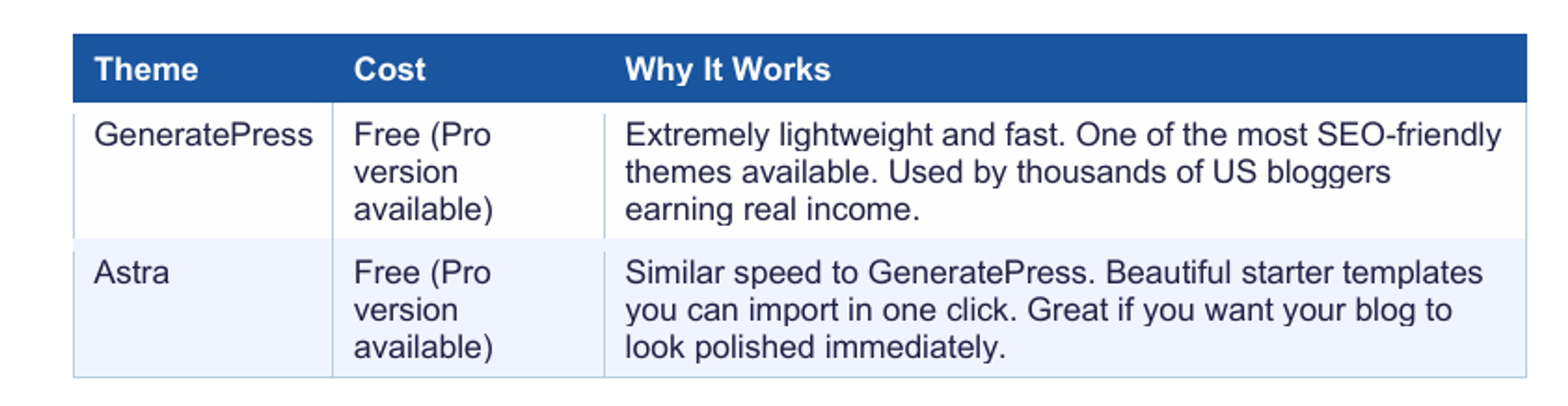
To install: go to Appearance → Themes → Add New in your WordPress dashboard. Search the theme name, click Install, then Activate.
What to avoid: any theme with built-in sliders, parallax scrolling, animated elements, or flashy page transitions. They look impressive in demos. In real life they slow your site down significantly and Google punishes slow sites by pushing them down in search results. Slow = fewer readers = less income.
💡 Your Theme Setup Priority Order
1. Speed over design always. Readers leave slow sites in under 3 seconds.
2. Mobile responsive over 60% of US Google searches happen on phones. Both GeneratePress and Astra handle this automatically.
3. Minimal plugins for design the more plugins doing visual work, the slower your site gets.
4. Set your site colours and logo once then leave it alone for at least 6 months and write content instead.
Step 5 Install These 5 Plugins
Plugins are add-ons that give WordPress extra functionality. There are over 60,000 plugins available, which sounds overwhelming. But the truth is you only need five to start a blog properly. Here are the only ones you need right now these are the WordPress plugins essential for bloggers that every serious US blogger installs on day one:
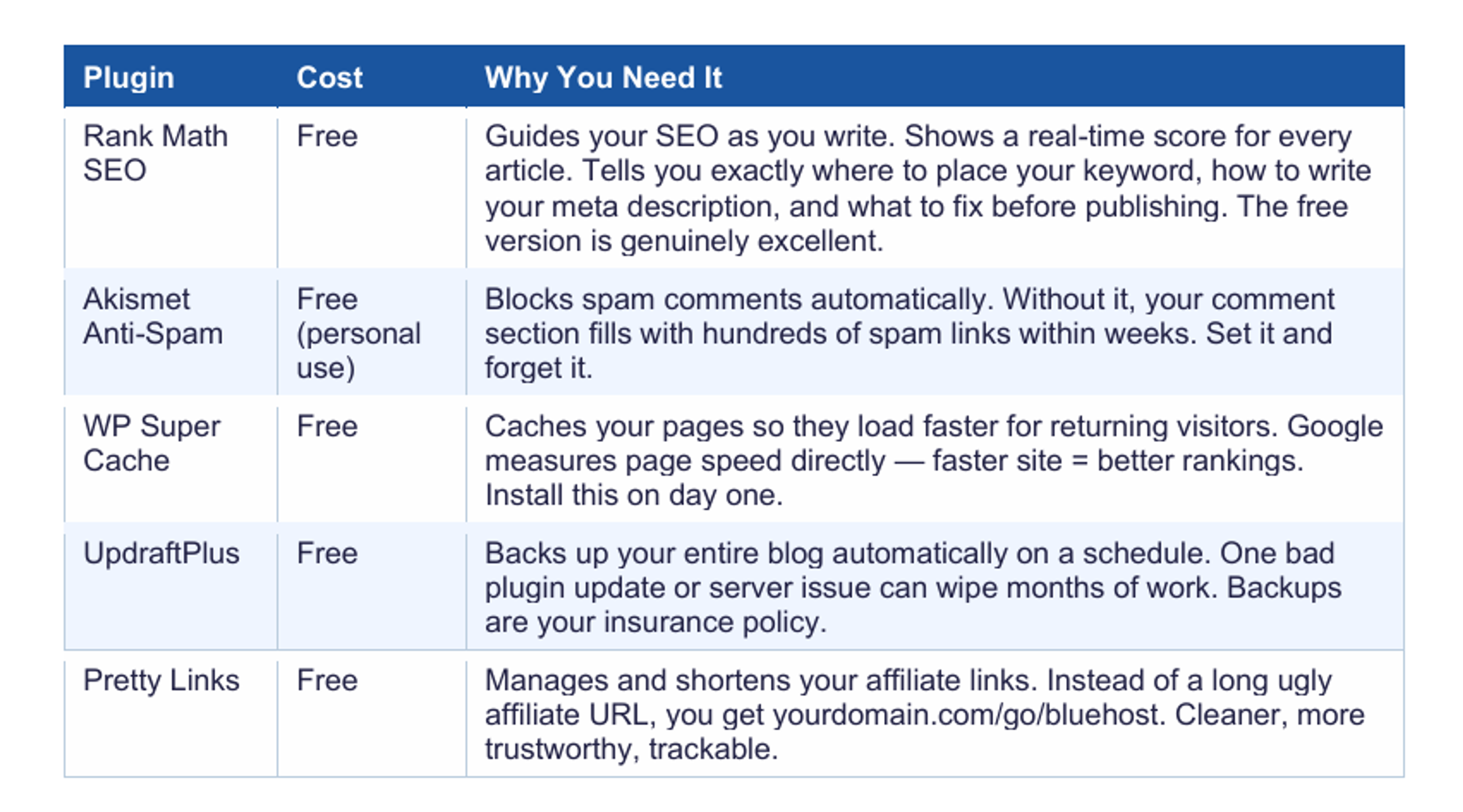
To install any of these: Plugins → Add New in your WordPress dashboard. Search the name. Click Install. Click Activate. Takes about 2 minutes per plugin.
⚠️ The Plugin Rule Every US Blogger Needs to Know
More plugins = slower site. Only install what you actually need.
Each plugin adds code that runs on every page load. 5–10 well-chosen plugins = fine.
30+ plugins = serious speed problems and potential security vulnerabilities.
Delete plugins you install and do not use. Deactivated but installed plugins still pose risks.
Stick to the 5 above until your blog is established. Add more only when you have a specific, clear reason.
Step 6 Connect Google's Free Tools
These two tools from Google are completely free and absolutely essential for any US blogger who wants to be found in search. Do not skip this step — setting them up now means you have data from day one, which is incredibly valuable when you start optimising your content a few months in.
Google Search Console Tell Google Your Blog Exists
Google Search Console is the tool that formally tells Google your blog exists and asks it to start indexing your content. It also shows you over time which exact keywords people are using to find your articles, how many clicked through, and which pages have technical issues.
This is not optional for a US blogger who wants organic search traffic. It is the most important free SEO tool available and most beginners either set it up wrong or skip it entirely.
- Go to search.google.com/search-console and sign in with your Google account
- Click 'Add Property' → choose 'URL prefix' → enter your full domain: https://yourdomain.com
- Choose 'HTML tag' as the verification method copy the meta tag code shown
- In WordPress: Rank Math → General Settings → Webmaster Tools → paste the tag in the Google Search Console field → Save
- Back in Search Console: click Verify
- Go to Sitemaps → type sitemap_index.xml → click Submit. This tells Google about all your articles at once.
- Final step: go to URL Inspection → paste your homepage URL → click 'Request Indexing'
Google Analytics 4 — Track Every Visitor From Day One
Google Analytics 4 (GA4) shows you exactly how many people visit your blog, which articles they read, how long they stay, where they came from (Google search, social media, direct), and what device they used. All free.
For US bloggers specifically: Analytics lets you see what percentage of your traffic is actually from the United States. This matters because US traffic earns significantly more from advertising and converts better on US affiliate programs.
- Go to analytics.google.com — sign in with your Google account and create a free account
- Click 'Create Property' — enter your blog name and domain
- Set your timezone to your US timezone and currency to USD
- Copy your Measurement ID — it looks like G-XXXXXXXXXX
- In WordPress: Rank Math → General Settings → Analytics → paste your Measurement ID → Save. No code editing needed.
- Test it: open your blog in a different browser or phone, then check Analytics — you should see 1 active user
🇺🇸 Set Your Geographic Target in Search Console
After verifying Search Console, go to Settings → International Targeting → Country tab.
Set your target country to United States.
This tells Google your content is specifically intended for US readers.
It is one of the simplest GEO optimisation steps available and most bloggers completely miss it.
Step 7 Pre-Publish Checklist for Your First Article
Before you hit Publish on your first article, go through this checklist inside WordPress. Every item here directly affects either your search rankings or your income potential — nothing on this list is optional.
✅ Pre-Publish Checklist — Check Every Box
☐ Title includes your main keyword — in the 'Title' field at the top of the post editor
☐ Permalink (URL) is short and keyword-only — edit it in the 'Permalink' box just under the title. Example: /how-to-save-money-groceries (not /how-to-save-money-on-groceries-in-the-usa-for-beginners-2026)
☐ Focus keyword entered in Rank Math — look for the Rank Math panel in the right sidebar
☐ Meta description written in Rank Math — click the pencil icon in the search preview box. 150–160 characters. Include keyword + a clear benefit.
☐ At least one image added — with a descriptive alt text that includes your keyword
☐ Article links to at least 2 other pages on your site (internal links)
☐ FTC affiliate disclosure at the TOP of the article — required by US law if any affiliate links are present
☐ Rank Math SEO score is green or amber — do not publish on red
☐ Article reads well on mobile — check using your phone or WordPress's mobile preview
☐ Category and tags selected — helps site organisation and internal SEO
Frequently Asked Questions
Do I need fast hosting for WordPress even as a beginner?
Yes. and here is why it matters from day one. Google measures page speed as part of its Core Web Vitals scoring, which directly affects where your articles appear in search results. Choosing fast hosting for WordPress USA from the start means you are not fighting a speed disadvantage later. Both Bluehost and SiteGround are optimised for US traffic and meet Google's speed recommendations for beginner blogs.
Does my blog need an SSL certificate?
Yes, and the good news is you already have one. Every Bluehost and SiteGround hosting plan includes a free SSL certificate for blog setup that activates automatically. This gives your site the https:// prefix and the padlock icon in browsers. Google actually uses SSL as a ranking signal sites without it rank lower. You do not need to do anything to get it it is included.
What is the difference between managed and standard WordPress hosting?
In a managed WordPress hosting comparison, managed hosting (like Bluehost's WordPress-specific plans and SiteGround) means the hosting company handles WordPress updates, security scanning, and basic performance optimisation for you. Standard shared hosting just gives you server space — you manage everything yourself. For beginners, managed hosting is always worth it — the small additional cost saves you hours of technical work.
📖 Read These Next
→'Best Blogging Platforms for Beginners in the USA' — if you have not decided on WordPress yet, this comparison explains exactly why it wins for US bloggers who want income.
→'Choose Your Blogging Niche: Profitable Topics That Convert' — now that your blog is live, this tells you exactly what to write about and which US keywords to target first.
→'How to Start a Blog and Make Money in 2026: Complete Guide' — your full roadmap, from setup to first dollar.
About the writer

Writer
Alice is a Senior Financial Actuary for EveryTuesdays.com. She covers personal finance optimization, statistical market analysis, and data-driven strategies for long-term investing
You May Also Like
Browse All
How to Choose a Profitable Blog Niche in the USA (2026): The Complete Beginner's Guide
Not sure what to blog about? Learn how to choose a profitable blogging niche in the USA with a 3-part test, real income examples, and keyword difficulty ratings for every niche.
Blog SEO Optimization: The Complete Beginner's Guide to Ranking on Google (USA 2026)
Learn blog SEO optimization step by step. This guide covers title tags, keyword placement, internal linking and US ranking tips for beginner bloggers

Best Blogging Platform for Beginners in the USA (2026): Which One Actually Makes You Money?
Trying to pick the best blogging platform for beginners in the USA? We compare WordPress, Medium, Substack and Ghost — so you can choose the right one and actually earn money from your blog.