Email Marketing Automation 101: How to Set Up Workflows in Your CRM
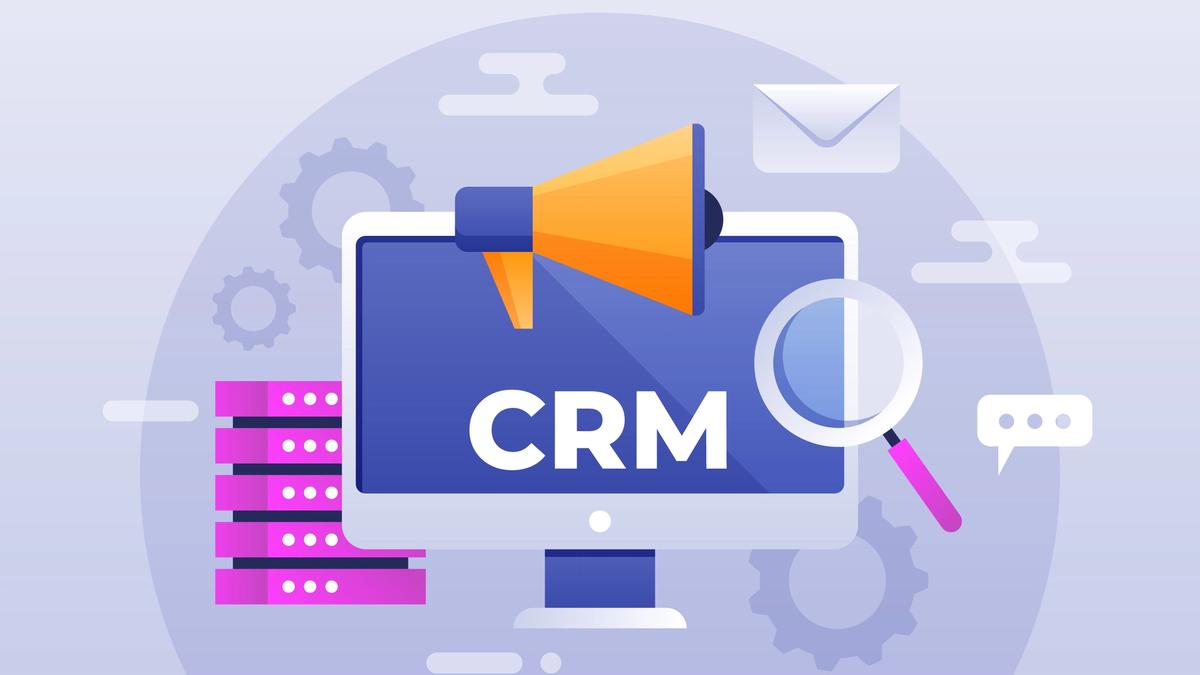
Set up powerful email automation workflows that run 24/7. Learn welcome sequences, drip campaigns, lead nurturing, and how to automate your email marketing in your CRM.
Email Marketing Automation 101: How to Set Up Workflows in Your CRM
Introduction
Your marketing team just acquired 500 new email subscribers from last month's webinar. You want to reach out to each one, but personalized emails sent one-by-one would take hours. Meanwhile, your sales team is struggling to follow up with leads consistently—some get contacted within hours, others slip through the cracks and forgotten after weeks.
This is where email marketing automation changes everything. Instead of manually sending emails, you set up automated workflows that send the right message to the right person at the right time—without lifting a finger. Automation doesn't feel impersonal; it feels like your team is magically staying on top of every lead. Email automation is most powerful when integrated with your CRM—learn how to choose the right CRM with strong automation capabilities, and understand CRM vs. email marketing software to ensure alignment.
This guide covers everything you need to know about email marketing automation and how to implement workflows in your CRM.
What is Email Marketing Automation?
Email marketing automation is a system that automatically sends emails (or triggers emails to be sent) based on specific conditions or actions. Instead of manually creating and sending emails one-by-one, you build a workflow that handles the sending automatically.
How It Works
Here's a simple example:
- A prospect fills out your "Free Demo" form
- Automatically, an email is sent to them confirming their demo appointment
- Two days before their demo, another automated email reminds them with a calendar link
- After the demo, if they haven't responded, an automation sends a follow-up email
- If they click the link in the follow-up, a sales notification goes to your team
You set this up once, and it runs automatically for every prospect, forever.
The Difference Between Email Automation and Email Blasts
Many people confuse email automation with email blasts (bulk emails). Here's the critical difference:
Email Blast: You select a list of 1,000 people and send the same email to all of them at once. It's a one-time event.
Email Automation: You create a workflow that triggers based on actions. When anyone takes that action (fills out form, clicks link, makes purchase), they enter the workflow automatically. The workflow can have different paths, waiting periods, and personalization.
Think of it this way: email blasts are like a radio broadcast. Automation is like a personalized assistant who remembers each customer's history and sends perfectly timed messages.
Benefits of Email Marketing Automation
Time Savings
The most obvious benefit is time. Instead of spending 20 hours a week manually sending follow-ups, your team spends 2-3 hours setting up automations that run on their own. The time savings compound—after setting up your core automations, you're hands-free.
Real impact: A sales team of 5 people can manage 3-4x more leads with the same amount of effort.
Consistency
Manual email sending is inconsistent—some leads get followed up with in 2 hours, others after 2 weeks, some not at all. Automation ensures every lead gets the exact same consistent experience.
Personalization at Scale
Email automation lets you personalize messages dynamically using data fields:
- "Hi {{first_name}}, thanks for attending our {{event_name}} webinar..."
- "Based on your interest in {{product_category}}, here's a relevant case study..."
- "We noticed you've opened 5 emails but haven't visited our pricing page—here's a special offer just for you..."
You're not sending one email to 1,000 people—you're sending 1,000 personalized emails with a single workflow.
Lead Scoring and Qualification
Automation tracks engagement and can automatically score leads. When someone opens 3 emails, clicks your pricing page, and visits your website, automation can flag them as a hot lead for your sales team. High-quality leads reach your salespeople exactly when they're most interested.
Real impact: Companies using lead scoring see 40% improvement in B2B conversion rates.
Improved Conversion Rates
Studies show that automated email sequences convert significantly better than manual emails:
- Welcome sequences (sent when someone joins your list) have 50% higher open rates than regular campaigns
- Automated follow-ups to webinar attendees increase attendance conversion by 25-30%
- Abandoned cart sequences recover 10-15% of lost sales for ecommerce businesses
Revenue Tracking
Modern automation integrates with your CRM to track revenue influenced by email. You can see exactly which email sequences drive the most sales, allowing you to optimize what works.
Types of Email Automation Workflows
Workflow Type 1: Welcome Series
Trigger: New subscriber joins your email list
Timeline: 5-7 emails over 2-4 weeks
Goal: Introduce your brand, build trust, and move leads toward a conversion action
Example:
- Email 1 (immediate): Welcome + thank you for subscribing
- Email 2 (Day 2): Introduce your product/service and its main benefit
- Email 3 (Day 4): Share a relevant case study or social proof
- Email 4 (Day 7): Feature a free resource (webinar, guide, tool)
- Email 5 (Day 10): Special offer or trial invite
The welcome series is arguably the most important automation because it sets the tone for your entire relationship with the subscriber.
Workflow Type 2: Lead Nurturing Campaign
Trigger: Lead signs up for information but isn't ready to buy
Timeline: 8-12 emails over 4-8 weeks
Goal: Educate the lead and move them down the funnel
Example workflow:
- Email 1: "5 ways to improve [customer pain point]"
- Email 2: Your approach to solving the problem
- Email 3: Customer story showing the problem solved
- Email 4: Comparison article (your solution vs. alternatives)
- Email 5-7: Deep-dive technical content
- Email 8-10: Conversion-focused emails (free trial, demo, pricing)
Workflow Type 3: Post-Event Follow-Up
Trigger: Attendee registers for or attends a webinar/event
Timeline: 3-5 emails over 1-2 weeks
Goal: Capitalize on event interest while engagement is highest
Example:
- Email 1 (1 hour after registration): Confirmation + reminder + agenda
- Email 2 (1 day before): Reminder with dial-in info + agenda
- Email 3 (immediately after): Thank you + recording link
- Email 4 (Day 3): Follow-up with special offer for attendees
- Email 5 (Day 7): Last chance offer
Workflow Type 4: Abandoned Cart (Ecommerce)
Trigger: Customer adds items to cart but doesn't checkout
Timeline: 3 emails over 3 days
Goal: Recover lost sales
Example:
- Email 1 (1 hour): "You left these items in your cart..." + cart link
- Email 2 (Day 1): Customer reviews/testimonials for the products
- Email 3 (Day 3): Urgency ("Only 2 left in stock") + special discount
Workflow Type 5: Post-Purchase Follow-Up
Trigger: Customer completes a purchase
Timeline: 5-10 emails over 4-8 weeks
Goal: Ensure satisfaction, increase retention, drive repeat purchases
Example:
- Email 1 (immediately): Order confirmation + delivery info
- Email 2 (Day 3): How-to guide or product tips
- Email 3 (Day 5): Customer success story from someone who bought the same product
- Email 4 (Day 10): Satisfaction survey + customer support offer
- Email 5-7 (Weeks 2-4): Related product recommendations
- Email 8+ (ongoing): Loyalty rewards, early access to new products
Workflow Type 6: Re-Engagement Campaign
Trigger: Subscriber hasn't opened an email in 60 days
Timeline: 2-3 emails over 1 week
Goal: Determine if subscriber is still engaged before removing them
Example:
- Email 1: "We miss you—here's what's new"
- Email 2 (Day 3): Special offer exclusive to re-engagement sequence
- Email 3 (Day 7): Final call before removing from list
How to Set Up Email Automation in Your CRM
Step 1: Choose Your Automation Platform
Most modern CRMs include email automation features. For detailed information on selecting the right CRM, review our comprehensive CRM guide. For understanding how email software integrates with CRM, read our comparison of CRM vs. email marketing platforms. Here's what to look for:
- Visual workflow builder: Drag-and-drop interface to create workflows (no coding)
- Trigger options: Ability to trigger on various actions (form submission, email open, link click, purchase, custom fields)
- Conditional logic: If/then branching to send different emails to different people
- Personalization: Dynamic fields inserting customer data
- A/B testing: Test different subject lines or email content
- Integration: Works with your other business tools
- Analytics: Reports showing opens, clicks, conversions by automation
Step 2: Define Your Automation Goal
Before building, answer: What specific outcome does this automation drive? Common goals:
- Generate leads from your website
- Nurture leads until sales-ready
- Welcome new customers and improve retention (closely related to reducing churn using CRM data)
- Recover abandoned purchases
- Upsell existing customers
Clear goals help you measure whether your automation is actually working.
Step 3: Map Your Audience and Trigger
Decide:
- Who enters this workflow? (new subscribers, webinar attendees, customers, specific lead score, etc.)
- What action triggers entry? (form submission, purchase, email open, date-based, etc.)
Step 4: Plan Your Workflow Path
Map the complete journey:
Entry point
→ Email 1 (immediate)
→ If opens email: Email 2
→ If clicks link: Email 3 (Conversion path)
→ If doesn't click: Email 4 (Alternative path)
→ If doesn't open: Email 5 (Re-engagement email)
Build a simple flowchart before going into your CRM. This clarity prevents mistakes and makes setup faster.
Step 5: Create Your Emails
Write emails that are:
- Personalized: Use {{first_name}} and other custom fields
- Action-oriented: Include clear calls-to-action (links, buttons)
- Mobile-optimized: Most emails are opened on phones
- Brief: Shorter emails get higher click rates
- Scannable: Use formatting, bold text, and short paragraphs
Subject lines matter enormously. Test different approaches:
- Question: "Are you making these 5 CRM mistakes?"
- Curiosity: "One thing we learned from 10,000 customers..."
- Benefit: "Get 50% off your first month"
- Personalization: "{{company_name}}, here's your custom report"
Step 6: Set Timing and Delays
For each email, decide when it should send:
- Immediate: Trigger email seconds after entry
- Scheduled time: Send at optimal time (Tuesday 10am typically has high open rates)
- Delay: Wait 2 days, then send
- Conditional timing: If this happened, wait X days before next email
Example timing:
- Email 1: Immediate
- Email 2: Wait 2 days
- Email 3: Wait 3 days
- Email 4: Wait 5 days
Waiting between emails improves engagement. Sending too many emails too quickly causes unsubscribes.
Step 7: Add Conditional Logic
Conditional logic makes automation smart. Examples:
If/Then Logic:
- If contact opened previous email → send Email 2
- If contact didn't open → send reminder version of Email 1
- If contact clicks "Yes, I'm interested" link → assign to sales
- If contact is from company size 50-200 employees → send SMB pricing email
- If contact industry is healthcare → send relevant case study
This personalization significantly improves results.
Step 8: Build Workflows in Your CRM
Navigate to your CRM's automation or workflows section:
- Create new automation
- Select trigger (e.g., "Contact submits form")
- Add first email
- Set delay to next email
- Add conditional logic if needed
- Add subsequent emails
- Test with your own email address
- Review and activate
Step 9: Test Your Workflow
Before activating, test thoroughly:
- Submit the form yourself and verify Email 1 arrives
- Check email formatting on mobile
- Verify all links work
- Confirm merge fields ({{first_name}}) display correctly
- Check that conditional logic triggers correctly
- Verify integrations (leads appearing in CRM correctly)
Nothing damages your reputation faster than automation errors—misspelled merge fields, broken links, or incorrect personalization.
Step 10: Monitor and Optimize
After activation, monitor these metrics:
- Open rate: % of people who open each email (expect 20-40% for cold emails)
- Click rate: % of people who click links (expect 3-10%)
- Conversion rate: % who complete desired action
- Unsubscribe rate: % who leave your list (should be <1%)
Analyze results:
- Which emails have lowest open rates? Improve subject lines.
- Which emails have lowest click rates? Add stronger calls-to-action.
- Which emails cause unsubscribes? Those emails may be too salesy.
Small improvements compound. Moving open rate from 25% to 30% across 4 emails means 200 more opens per 1,000 subscribers.
Common Automation Mistakes to Avoid
Mistake 1: Too Many Emails Too Quickly
Sending 5 emails in one week will destroy your open rates and cause unsubscribes. Space emails at least 2-3 days apart.
Mistake 2: Irrelevant Content
Personalizing {{first_name}} doesn't make irrelevant content relevant. Ensure each email in the workflow addresses actual customer pain points or interests.
Mistake 3: Unclear Call-to-Action
Every email should have a clear next step. "Click here," "Schedule a demo," "Watch the video," etc. Ambiguous CTAs get ignored.
Mistake 4: Neglecting Mobile Optimization
60%+ of emails are opened on mobile devices. Test all emails on phones. Single-column layouts and large buttons work better on mobile.
Mistake 5: Not Monitoring Unsubscribes
If your automation causes high unsubscribe rates, something is wrong. Monitor this metric closely. An unsubscribe rate over 0.5% per email indicates problems with content or frequency.
Mistake 6: Forgetting to Update Automations
Your business changes. Product updates, pricing changes, seasonal promotions—your automations should reflect current reality. Review and update automations quarterly.
Advanced Automation Strategies
Lead Scoring Through Automation
Assign points based on actions:
- Opens email: +1 point
- Clicks link: +5 points
- Visits pricing page: +10 points
- Requests demo: +25 points
- Completes purchase: +50 points
When a contact reaches 25+ points, automatically notify your sales team or update their lead status.
Behavioral Segmentation
Create different workflow paths based on behavior. This is closely related to customer retention strategies, where behavioral data (usage, engagement, product features adopted) predicts churn risk and enables retention interventions.
- Interested in Feature A vs. Feature B? Send different content
- Downloaded pricing guide? Send sales-focused emails
- Attended webinar but didn't register for free trial? Send reminder
- Purchased product? Send customer-specific content
Win-Back Campaigns
Target inactive customers:
- If customer hasn't purchased in 6 months, start win-back campaign
- Include "We miss you" message, new features, special offer
- If still no engagement, remove from regular send list
Email Automation Tools and Integrations
Tools with Excellent Email Automation:
- HubSpot: Built-in automation, easy setup, excellent integration with CRM
- ActiveCampaign: Powerful automation with advanced conditional logic
- Klaviyo: Best for ecommerce automation and personalization
- Drip: Excellent automation for content creators and small businesses
- ConvertKit: Built for creators with simple but powerful automation
- Zapier: Connects almost any email tool to your CRM for custom automation
Integration Tip:
Use your CRM as the "brain" of your automation. Email software sends campaigns, but CRM tracks results. When email engagement hits certain thresholds, CRM automatically notifies sales team.
For more on CRM selection and integration strategy, review our detailed CRM comparison. For understanding how to integrate email with CRM specifically, read our CRM vs. email marketing guide.
Measuring Automation ROI
Email marketing automation should drive measurable results. Track:
- Leads generated: How many new leads enter your automations monthly?
- Conversion rate: What % of email subscribers convert to customers?
- Revenue influenced: How much revenue comes from automated email sequences?
- Cost per acquisition: Divide email costs by new customers = CPA
This should be tracked alongside customer lifetime value and retention metrics, as sustainable SaaS businesses depend on both efficient acquisition and strong retention. A well-optimized automation can cost as little as $5-20 per customer acquired—making it one of your most efficient marketing channels.
Next Steps
- Identify your first workflow: Welcome series is usually best starting point
- Map your journey: Sketch out email sequence before building
- Create your emails: Write copy, design templates, test on mobile
- Set up in your CRM: Use your automation platform's tools
- Test thoroughly: Check links, formatting, personalization
- Monitor and optimize: Track metrics, improve based on results
Email automation is one of the highest-ROI activities you can implement in your CRM. Start small with one or two automations, master them, then expand to more sophisticated workflows.
Related topics:
About the writer

Founder & Writer · EveryTuesdays
You May Also Like
Browse All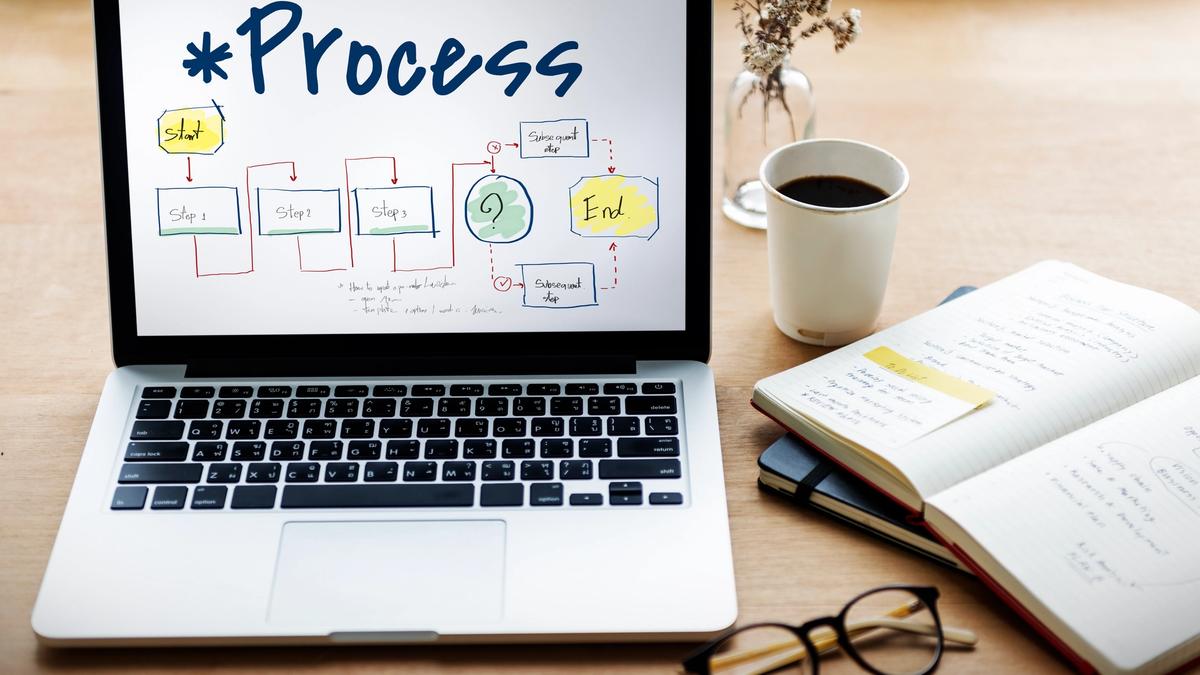
CRM Implementation Timeline: 6-Month Roadmap for Enterprise SaaS Teams
Plan a successful CRM rollout with our realistic 6-month implementation roadmap. Covers data migration, configuration, training, launch, and optimization phases.
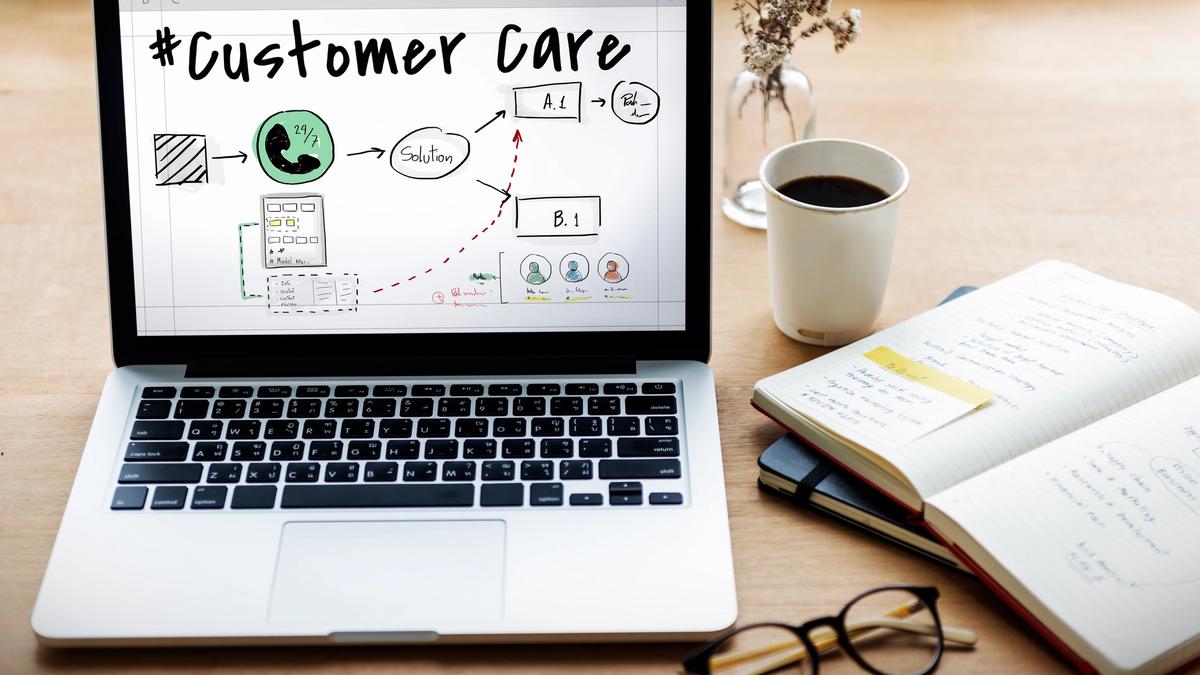
SaaS Customer Retention Metrics: How to Reduce Churn Using CRM Data
Reduce SaaS churn and increase profitability. Learn critical retention metrics (churn rate, LTV, NRR), predict at-risk customers, and use CRM data for retention strategies.
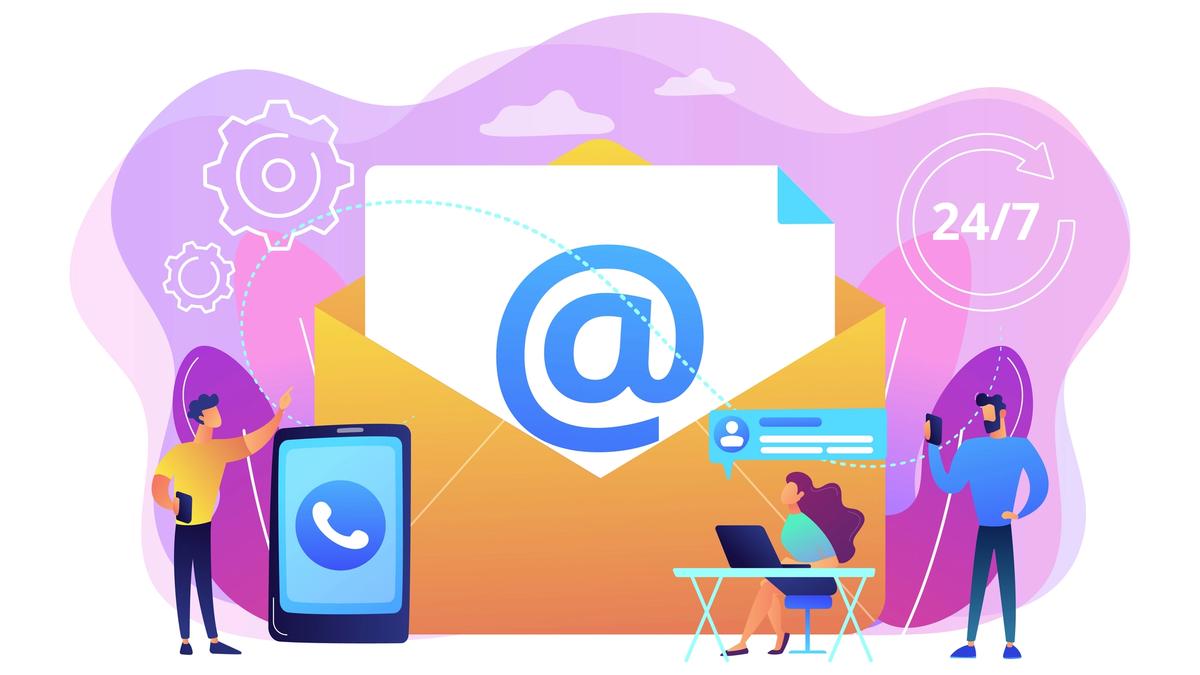
CRM vs. Email Marketing Software: When to Use Each & How to Integrate
Confused about CRM vs. email marketing software? Most companies need both. Learn when to use each system, how they differ, and how to integrate them for maximum ROI.